

Integration Guide
Note from GitBook: Demo content
This page contains some demo content meant to give a good impression of how your docs could work.
These are the most important pages that have been built in accordance with the brief by PayPal:
Know before you code
Complete the steps in Get Started to get the following sandbox account information from the Developer Dashboard:
Client ID
Access token
Business account credentials
Personal account credentials
This client-side and server-side integration uses the following:
Catalog Products REST API: Creates goods or services for customers to subscribe to.
Subscriptions REST API: Creates a recurring payment plan.
PayPal JavaScript SDK: Creates a payment button.
Use Postman to explore and test PayPal APIs.
Create product
To create a product for your subscription plan, copy and modify the following code:
Sample request
API endpoint used: Create product
Modify the code
After you copy the code in the sample request, modify the following:
Change
ACCESS-TOKENto your access token.Replace
REQUEST-IDwith a unique ID that you generate. This ID helps prevent duplicate requests if the API call is disrupted.Optional: Change parameters such as the
nameanddescriptionto represent your product.
Step result
A successful request results in the following:
The HTTP status code
201 Created.A JSON response body that contains an
idfor the product. Use this ID to complete other actions through the REST API, such as creating a subscription plan.
Sample response
Create subscription plan
The following sample request is an example of a subscription plan. Modify the code to fit your subscription model.
Review the following topics to help understand how to modify the code for your use case:
Sample request
This sample request creates a subscription plan that:
Has a 1-month free trial and continues as a 12-month, fixed-price subscription
Includes a $10 USD setup fee
Bills any outstanding balance at the next billing cycle
Allows the subscription to continue if the initial payment for the setup fails
Suspends the subscription after 3 consecutive payment failures
Includes a 10% tax in the billing amount
Important: Only one currency_code is allowed per subscription plan. Make a new subscription plan to offer a subscription in another currency.
API endpoint used: Create plan
Modify the code
After you copy the code in the sample request, modify the following:
Change
ACCESS-TOKENto your access token.Replace
REQUEST-IDwith a unique ID that you generate. This ID helps prevent duplicate requests if the API call is disrupted.Change the value of the
product_idparameter to the ID returned when you created the product.(Optional) Change or add parameters in the Create plan request body to create a plan that meets your business needs. Some examples:
Fixed pricing plans
User or seat-based pricing plans
Free or discounted trials
Step result
A successful request results in the following:
The HTTP status code
201 Created.A JSON response body containing an
idfor the subscription plan. Use the subscription plan ID to complete other actions through the REST API, such as editing or deactivating the plan.A subscription plan in the seller's PayPal account in the
Onstatus.
Sample response
To see how this API call looks in the seller's account, use your sandbox business account credentials to log in to https://www.sandbox.paypal.com/billing/plans. The subscription plan reflects the plan number from the REST API call you made.
Create payment button
To start a subscription from your website, add the PayPal JavaScript SDK code and modify it. This code adds buttons to your website so your buyers can use PayPal or a debit or credit card.
Add and modify the code
Copy and paste this code into webpage to create the buttons. When your buyer selects a button, they are directed to PayPal to complete subscription agreement and payment.
Modify the code as follows:
Change
YOUR_CLIENT_IDto your client ID.Change
YOUR_PLAN_IDto the plan ID returned from the Create Plan API call.
Load the webpage to see the payment buttons:

Tip: To render more than one button on a single webpage, see Multiple subscribe buttons for your website.
Test flow
Test a transaction to see the subscription created in the merchant account:
Test the transaction as a buyer
Select the PayPal button on the page.
Use the sandbox personal login information from the Developer Dashboard to log in and simulate the buyer making a purchase.
In the Checkout window, make a note of the purchase amount in the upper right corner. USD is the default currency. You can customize the JavaScript SDK by adding a different currency code.
Availability: The JavaScript SDK
onShippingChange,onShippingAddressChange, andonShippingOptionsChangefunctions are not compatible with Subscriptions.Select the arrow next to the purchase amount to view the subscription details:
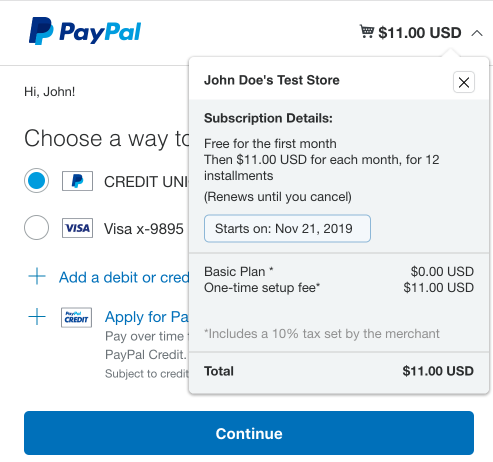
Select the test credit card as the payment method and select Continue.
Select Agree & Subscribe to agree to the terms of the subscription.
Confirm the movement of funds from the buyer account
Use the sandbox personal account you used to complete the purchase to log in to https://www.sandbox.paypal.com/myaccount/autopay/connect/.
Confirm the subscription appears in the active automatic payment list. Select the active automatic payment to see the details of the subscription.
Log out of the account.
Confirm the movement of funds to the merchant account
Use the sandbox business account information from the Developer Dashboard to log in to https://www.sandbox.paypal.com/billing/subscriptions.
Confirm the subscription made by the test buyer appears on the Subscriptions tab. Select the subscription to see the details of the subscription.
Log out of the account.
Next steps
Test and go live with your subscription integration.
See also
Catalog Products REST API and Subscriptions REST API - Use these APIs to add actions to your integration, such as updating the product description, editing the plan or subscription, deactivating the plan or subscription, and more.
Subscriptions webhook events - Use webhooks to handle tasks triggered by subscription actions.
Last updated
Was this helpful?